Remote Control
Mode Definitions
| Concept | Description |
|---|---|
| Damping Mode | All robot joints stop active movement, remaining in their current positions, with a noticeable damping sensation when swung. |
| Zero Position Mode | All robot joints move to a fixed position and are locked. |
| Standing Mode | The robot enters a standing state, allowing control over its body posture in the roll, pitch, and yaw directions, as well as its height; it can execute preset actions, enable teleoperation, or perform data recording functions. |
| Walking Mode | The robot enters a walking state, allowing control over the robot's walking and rotational speeds. |
| Running Mode | The robot enters a running state, allowing control over the robot's running and rotational speeds. |
| Developer Mode | Recommended to enter from Damping Mode, used for SDK development. In this mode, RL scripts can be launched, or user control data can be received to achieve custom control. |
RCU Indicator Light Description
The RCU indicator light is located on the front of the robot's chest, below the battery cover.
| Mode Status | Color |
|---|---|
| RCU booted successfully, NUC not connected | 🟣 Fast breathing purple |
| RCU booted successfully, NUC connected | 🟣 Slow breathing purple |
| Developer Mode | 🔵 Slow breathing blue |
| Low Battery | 🔴 Fast breathing red |
| Battery not connected | 🔴 Slow breathing red |
| Zero position check error | 🟡 Solid yellow |
| Actuator error | 🟡 Slow breathing yellow |
| Absolute encoder error | 🟡 Fast breathing yellow |
Joystick Operation Instructions
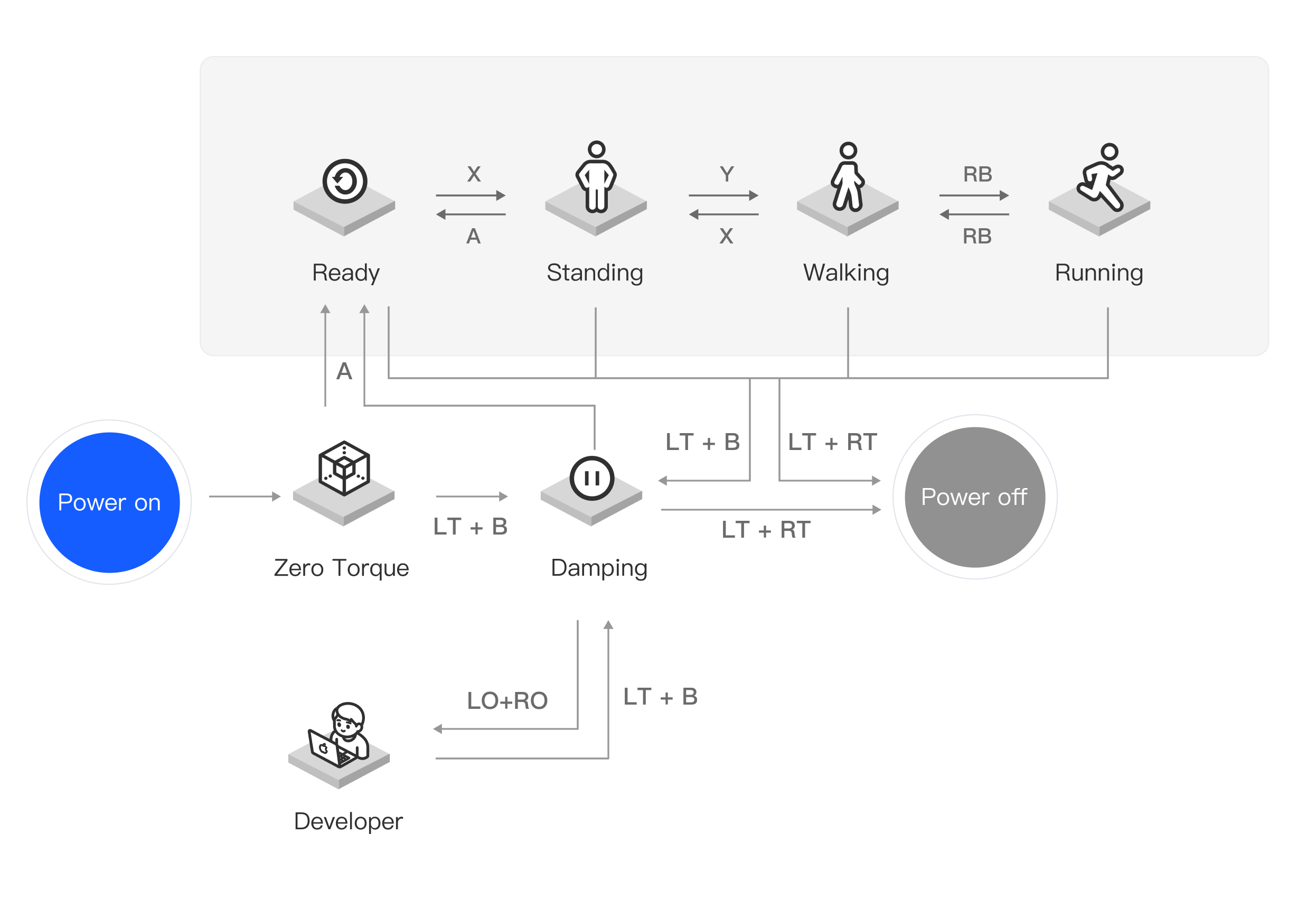
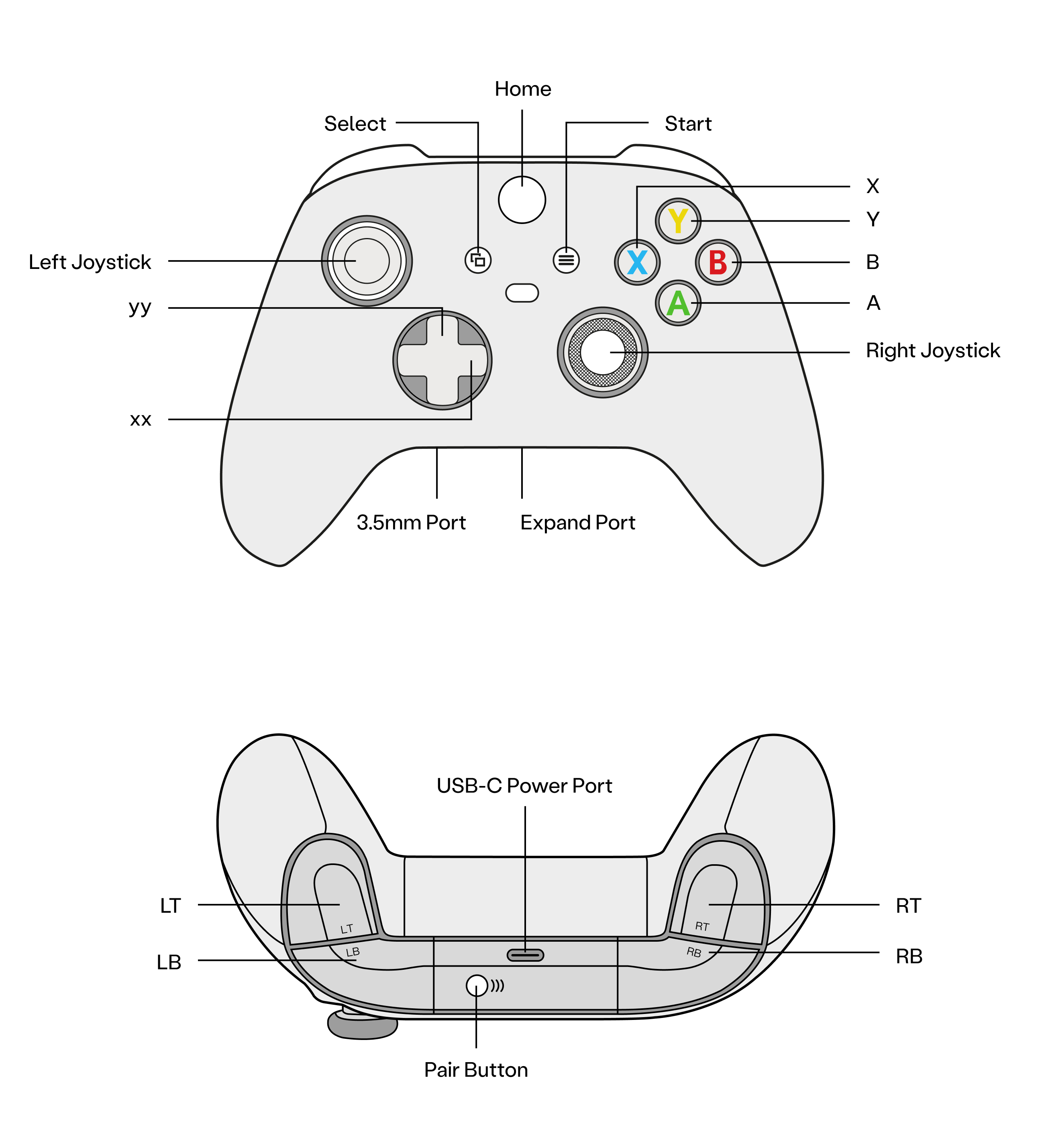
| Mode | Button | Previous State | Functional Description |
|---|---|---|---|
| Damping Mode | LT + B | Any mode | Can be entered from any mode, used for safely stopping actions or entering Developer Mode |
| Zero Position Mode | A | Damping/Standing | Enters Zero Position Mode, all joints move to a fixed position and lock |
| Standing Mode | X | Zero/Walking | Enters Standing Mode, allowing execution of preset actions, enabling teleoperation, or data recording functions |
| RB | Standing | Execute a single preset action | |
| Left Joystick Horizontal | Standing | Control the robot body's roll posture | |
| Left Joystick Vertical | Standing | Control the robot body's pitch posture | |
| Right Joystick Horizontal | Standing | Control the robot body's rotation (yaw) posture | |
| Right Joystick Vertical | Standing | Control the robot body's height | |
| D-pad → | Standing | Enable teleoperation receiving mode | |
| D-pad ← | Standing | Exit teleoperation receiving mode | |
| RT + D-pad ↓ | Standing | Trigger data recording start/stop, records all joints + finger position data - Record path: /etc/pndbotics/pnd_adam_dds - Playback path: /etc/pndbotics/pnd_adam_dds/Sources/motion |
|
| X | Walking | Switch back to Standing Mode from Walking Mode | |
| Walking Mode | Y | Standing/Running | Enter Walking Mode from Standing Mode, allowing control of the robot's walking and rotational speeds via joysticks |
| Left Joystick Vertical | Walking | Control the robot's forward and backward speed | |
| Right Joystick Horizontal | Walking | Control the robot's yaw angle speed | |
| D-pad | Walking | Control the robot's lateral position compensation | |
| RB | Running | Switch back to Walking Mode from Running Mode | |
| Running Mode | RB | Walking | Enter Running Mode from Walking Mode, allowing control of the robot's running and rotational speeds via joysticks |
| Left Joystick Vertical | Running | Control the robot's forward and backward speed | |
| Right Joystick Horizontal | Running | Control the robot's yaw angle speed | |
| D-pad | Running | Control the robot's lateral position compensation | |
| Developer Mode | LO + RO | Damping | Can be entered from Damping Mode, receives user control data to achieve custom control |
| LT + B | Developer | Exit user control, switch back to Damping Mode | |
| Short press Start 3 times consecutively | Developer | Launch RL script | |
| Long press Start for 5s | Developer | Exit RL script | |
| Actuator Power Off | LB + RB | Any mode | Can be pressed in an emergency for an immediate power-off |
PAC Interface Instructions
Enter the robot's IP address: 192.168.XX.XX (found on the back of the controller) in a browser to access the PAC interface.
Basic Functions
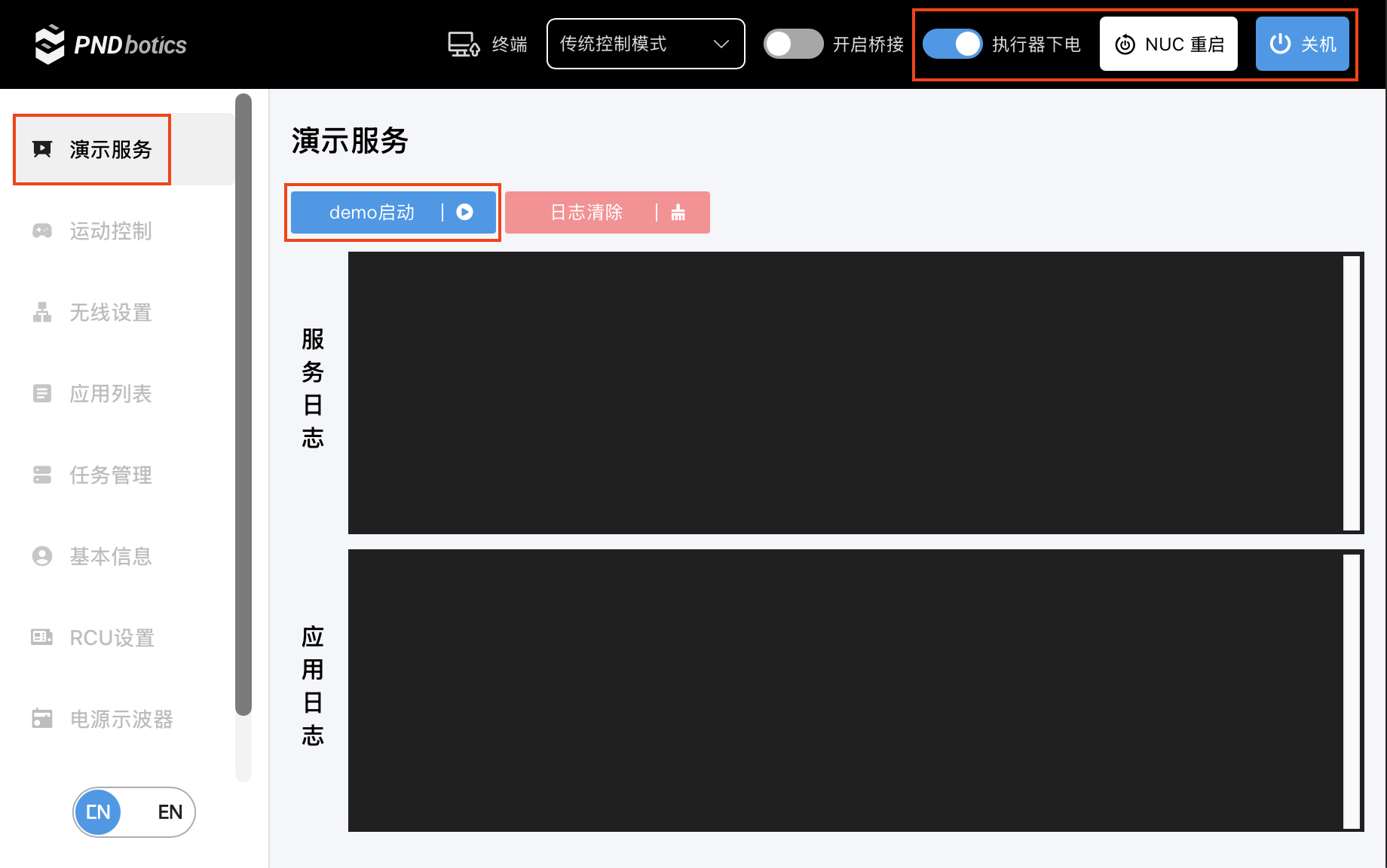
- The top of the interface provides functions such as "Actuator Power Off", "NUC Reboot", and "Shut Down".
- In the "Demo Service" sidebar, you can view service logs. Click "Start Demo" to restart the demo program.
Motion Control
- In the "Motion Control" sidebar, you can select to enter different modes. The effect is identical to controller operation; for detailed mode logic, please refer to the Joystick Operation Instructions above.
- Upon powering on, the robot automatically enters "Damping" mode. Keep the robot suspended, click "Zero Position" for the robot posture to return to zero, then lower the suspension hoist so the robot's feet touch the ground, and click "Standing" to enter standing mode. At this point, you can adjust the robot's posture by sliding the horizontal menu values: "Roll" controls the robot body's roll posture, "Pitch" controls the pitch posture, "Yaw" controls the rotation posture, and "Base Height" controls the robot body's height.
- In "Standing" mode, you can click "Walking" to enter walking mode. At this time, you can use the joystick to control the robot's movements, and the interface will display the real-time movement speed.
- In "Walking" mode, you can click "Running" to enter running mode. At this time, you can use the joystick to control the robot's movements, and the interface will display the real-time movement speed.
- In the "Action Library", click to select a preset action name, which supports drag-and-drop sorting. Once selected, you can click "Cancel" to reselect, click "Play" to control the robot to execute the corresponding action, and click "Stop" to stop the execution of the next action.
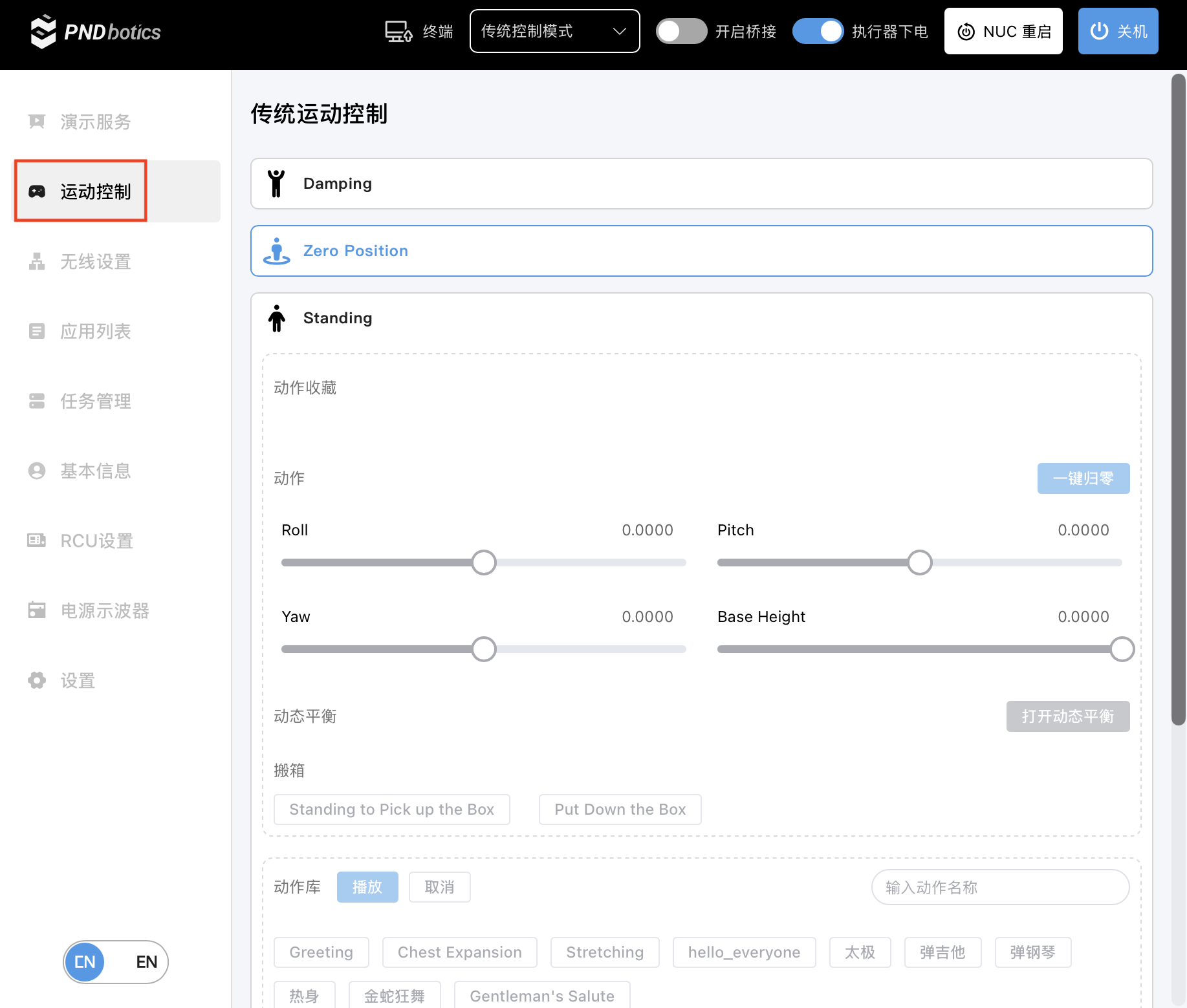
- In "Standing" mode, tighten the suspension hoist, click "Damping" to enter damping mode, and raise the hoist so the robot's feet are off the ground. At this time, you can click the mode title at the top of the interface to select and enter "Developer Mode":
Please switch modes while in "Damping" mode. Switching modes will cause the robot's joints to lose power, so please ensure the robot is properly suspended. The same applies when switching from "Developer Mode" to "Traditional Control Mode".

- When the "Reinforcement Learning Motion Control" button is disabled, it is in standard Developer Mode, allowing for SDK development. See Quick Development (Real Robot) for details.
- When the "Reinforcement Learning Motion Control" button is enabled, it launches the RL script, allowing motion control using reinforcement learning models. After the RL script is launched, the robot automatically enters "Damping" mode. Keep the robot suspended, click "Zero Position" for the robot posture to return to zero, then lower the suspension hoist so the robot's feet touch the ground, and click "Walking" to enter stand-walking mode. You can now use the joystick to control the robot's movements, which is identical to the walking operation under traditional mode. See Joystick Operation Instructions for details. The interface will display the real-time movement speed.
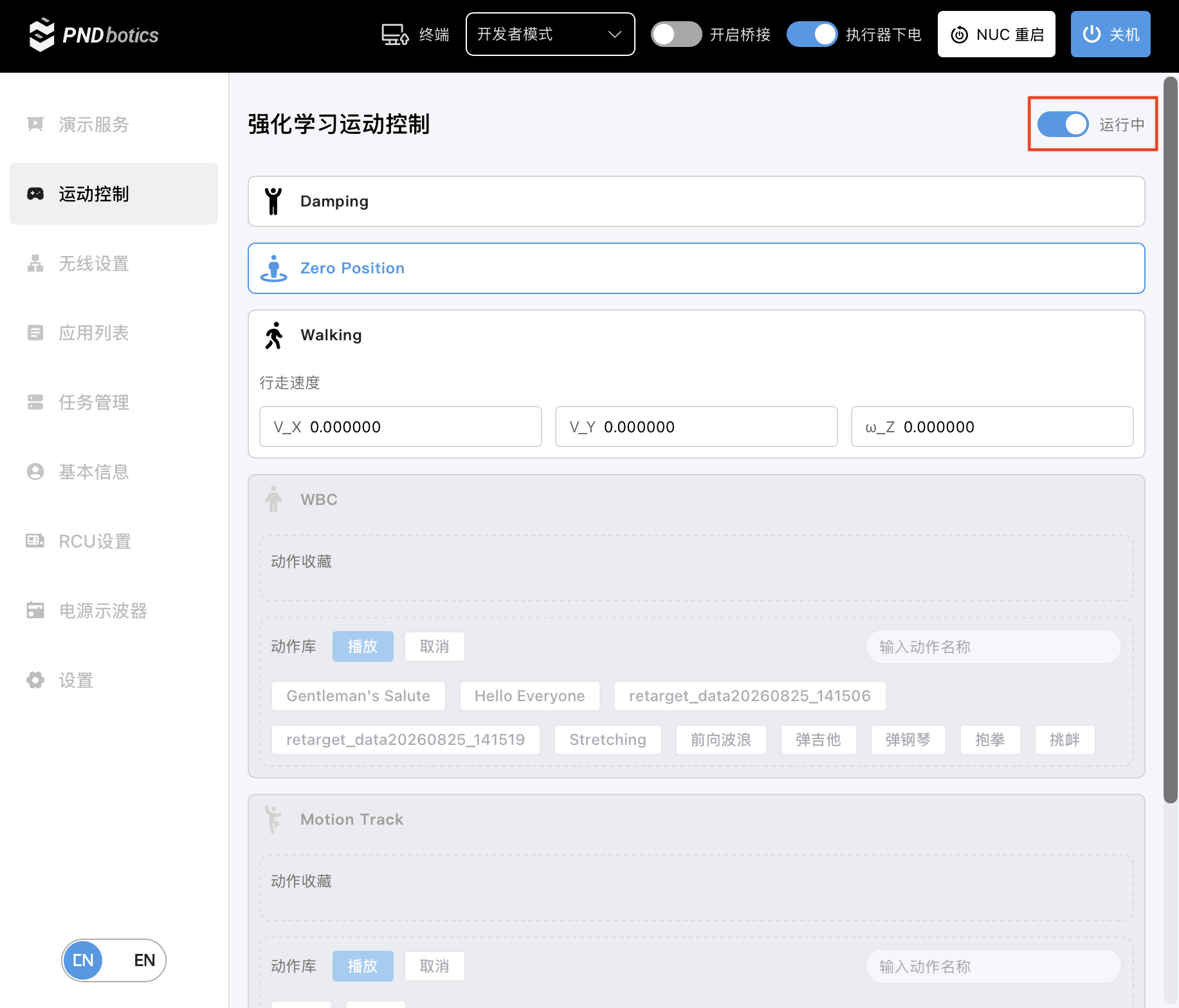
Note
"Damping", "Zero Position", and "Walking" in reinforcement learning are freely available.
"WBC", "Motion Track", and "Jogging" are paid models. Please contact Support to purchase before use.
- To end usage in Reinforcement Learning mode: In "Walking" mode, tighten the suspension hoist, click "Damping" to enter damping mode, and raise the hoist so the robot's feet are off the ground. At this point, you can power off or remain in a standby state.
Joystick Pairing
The factory settings are paired by default, and it connects automatically upon powering on. If you need to replace the joystick and re-pair, refer to the following steps:
- Long press the Pairing Button on the controller until the indicator light flashes rapidly.
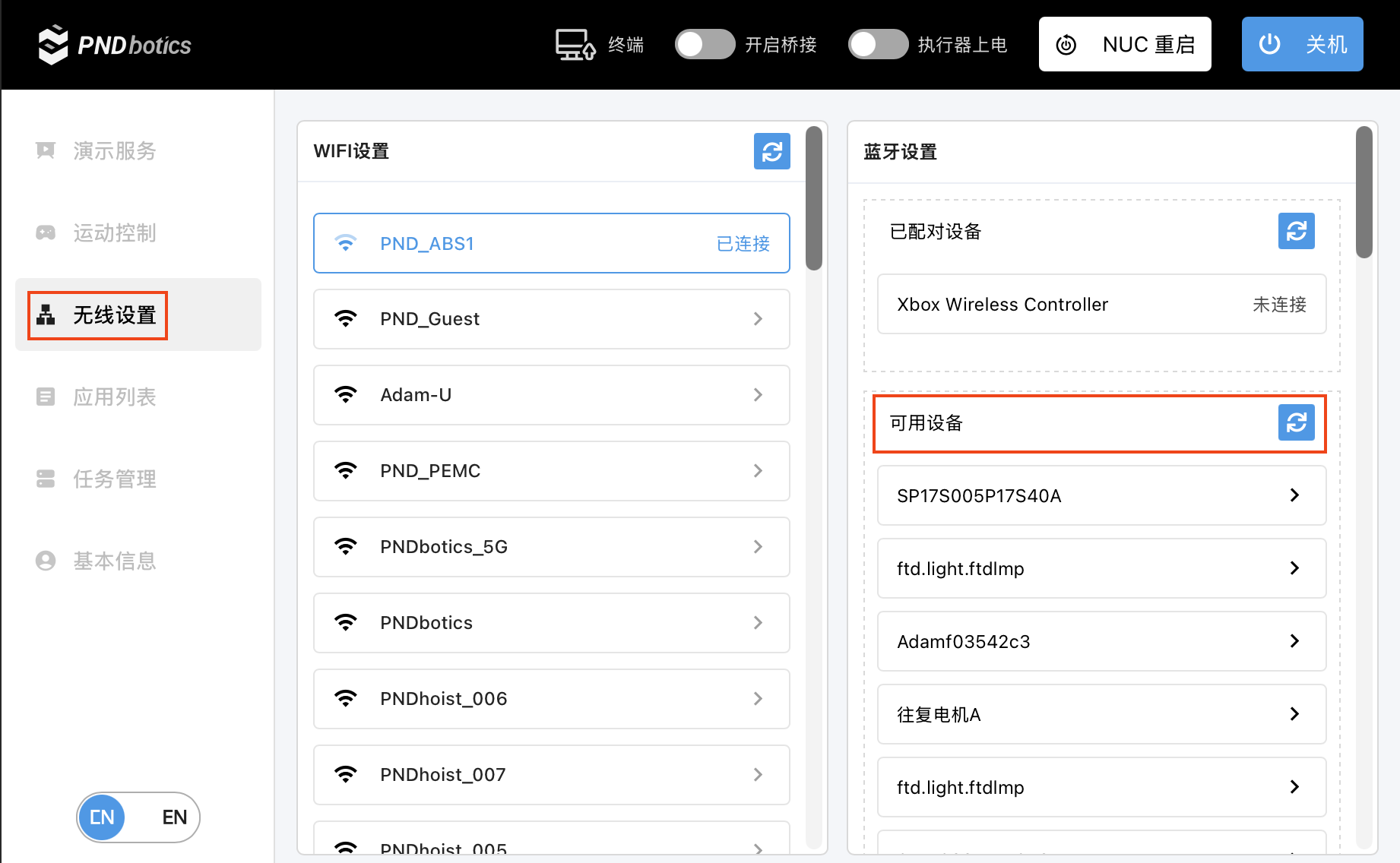
- Click "Wireless Settings" in the sidebar, find the device name "Xbox Wireless Controller" under the "Available Devices" column, and click it to perform the pairing connection.
Last Updated: 2026-09-20