RCU-4 User Manual
Robot Control Unit-4 (RCU-4) is an all-in-one power module for powering the PSA series actuators. It integrates Ethernet/UDP communication configuration and power braking, and provides 3 standard RJ45 communication interfaces and 4 XT30 power output interfaces, delivering stable and reliable power for the diverse power needs of multiple actuators.
Parameter Introduction
| Parameter | Specification | Parameter | Specification |
|---|---|---|---|
| Product Name | RCU-4 v2.0 | Rated Load | 48V/5A |
| Dimensions (L×W×H) | 133mm71mm72mm | Network Connection | Ethernet Port |
| Screen Size | 2.23inch OLED HAT | Recommended External Display | 1080P/50HZ |
| Power Adapter Input Voltage | AC 90-264V | Standby Power Consumption | 5W |
| Power Adapter Output Voltage | DC 48V | Maximum Power | NPB-360-48XLR: 360W YU4803: 144W |
| Operating Temperature | 0°C ~ 40°C | / | / |
Interface Specifications
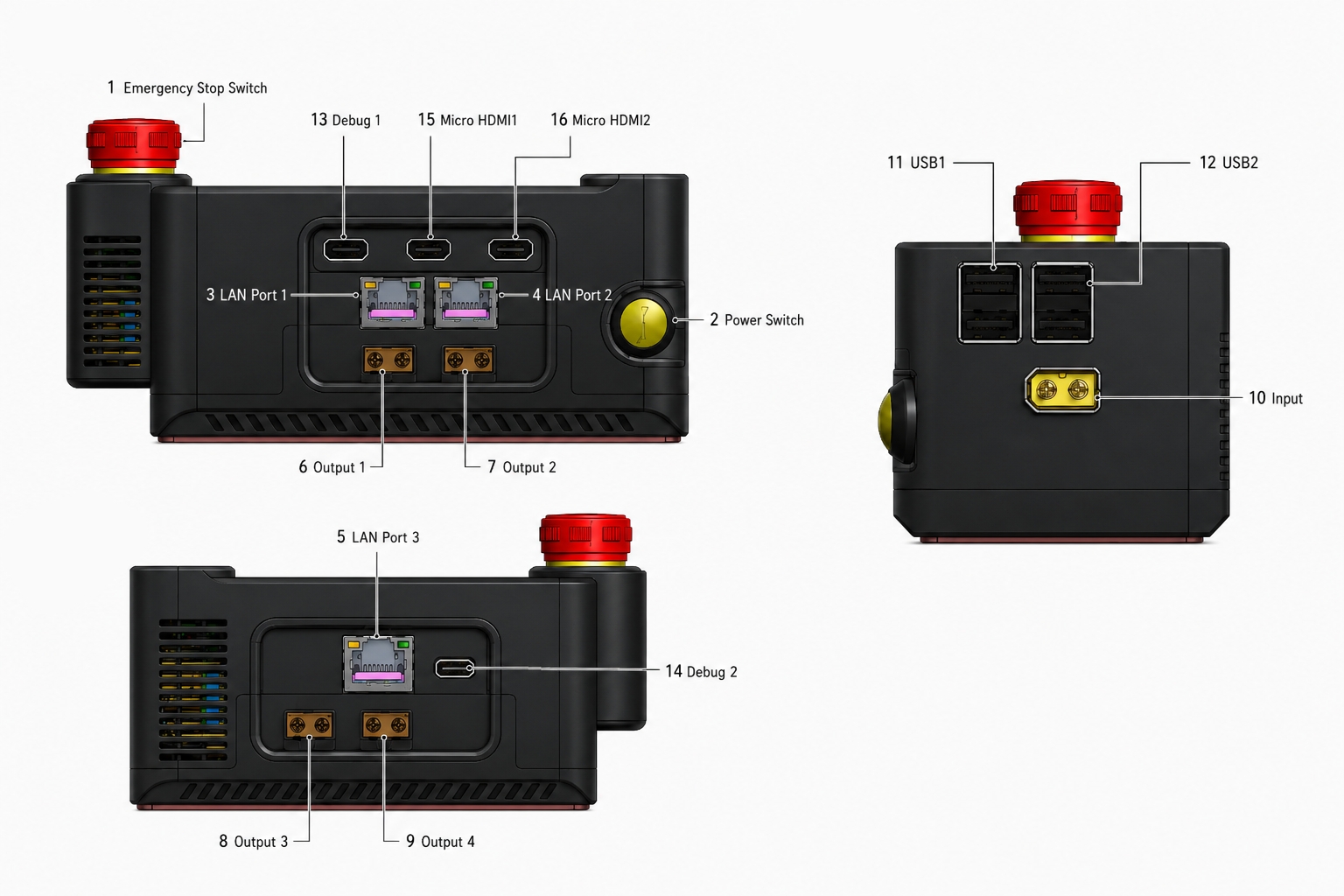
| No. | Type | Interface Description | No. | Type | Interface Description |
|---|---|---|---|---|---|
| 1 | Emergency Stop Switch | Emergency stop switch for output power | 9 | Output 4 | XT30 interface, 48V power output port |
| 2 | Power Switch | Power supply control switch for output power | 10 | Input | XT60 interface, 48V power input port |
| 3 | Ethernet Port 1 | Signal output interface | 11 | USB1 | Interface for connecting external devices (keyboard, mouse, etc.) |
| 4 | Ethernet Port 2 | Signal output interface | 12 | USB2 | Interface for connecting external devices (keyboard, mouse, etc.) |
| 5 | Ethernet Port 3 | Signal output interface | 13 | Debug 1 | Software debugging interface |
| 6 | Output 1 | XT30 interface, 48V power output port | 14 | Debug 2 | Software debugging interface |
| 7 | Output 2 | XT30 interface, 48V power output port | 15 | Micro HDMI1 | Display connection interface |
| 8 | Output 3 | XT30 interface, 48V power output port | 16 | Micro HDMI2 | Display connection interface |
Operation
Power On
Connect the power cable to the XT60 interface (No. 10). The device powers on automatically, and the screen lights up in about 20 seconds to complete startup.
Connection and Configuration
When using the RCU-4 for the first time, choose either of the following methods to complete the connection and configuration based on your actual hardware conditions.
Method 1: Configure from a User PC
This method connects your PC to the RCU-4 via a wired or wireless connection, and completes the configuration in the browser on your PC.
Wireless Connection
- In your PC's Wi-Fi list, select the hotspot whose name contains
RCU-4:XXand connect; the password is12345678. - Once connected, enter
10.10.0.1in the PC browser address bar to open the wireless configuration page. -
On the page, fill in your local router's
SSIDandpassword, then click Start Connection.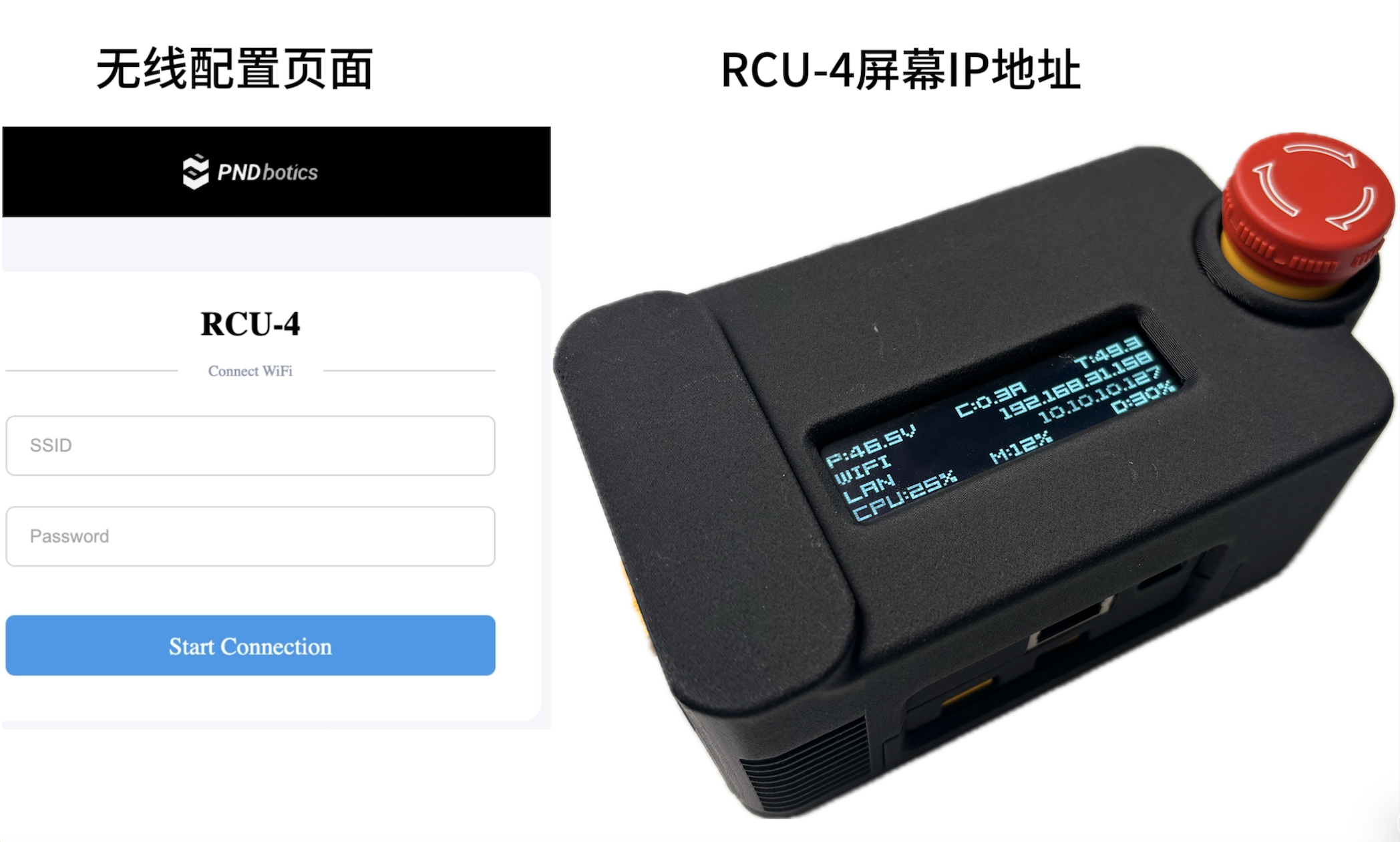
-
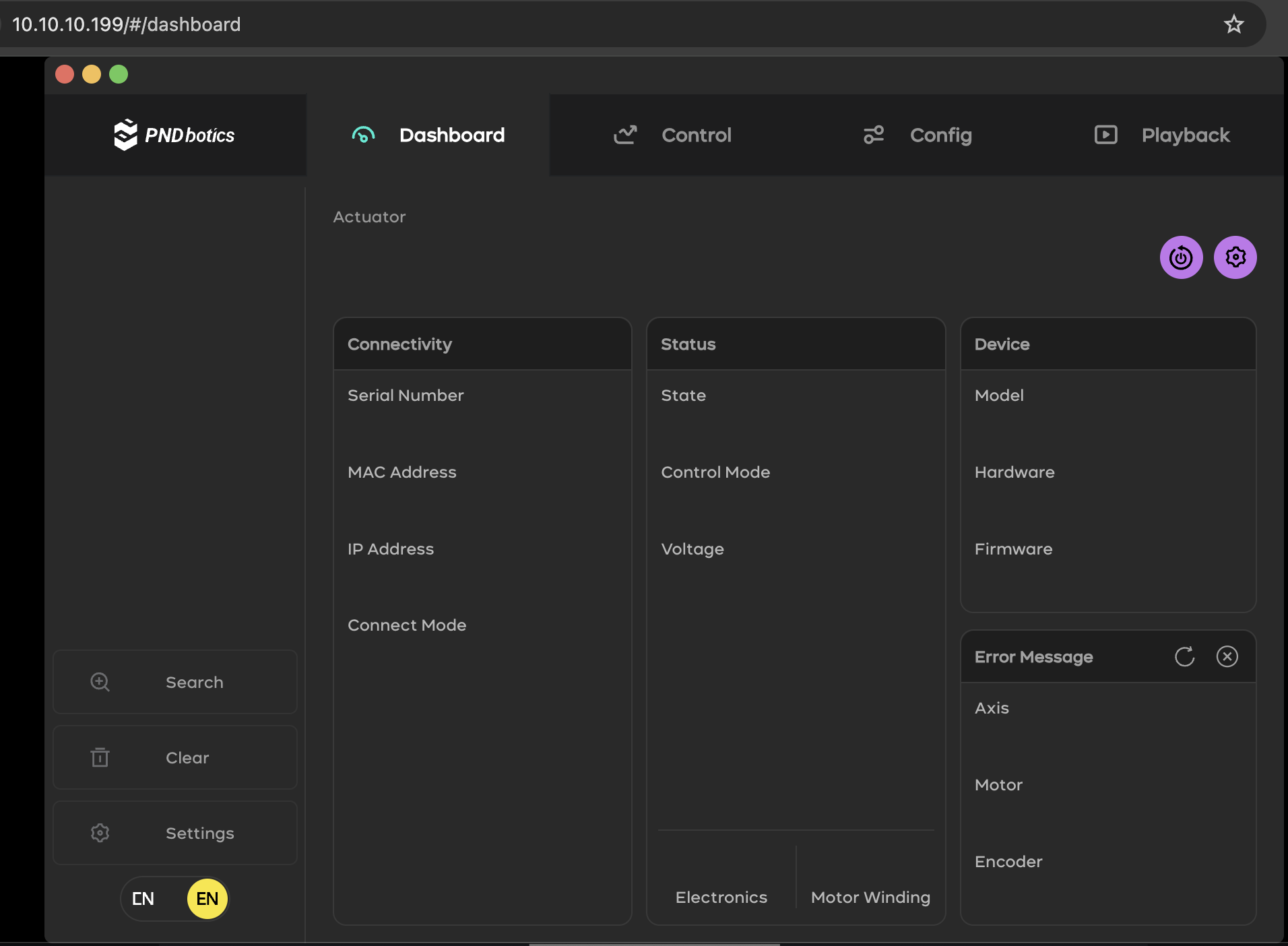
Wait a moment. When the RCU-4 screen displays the assigned IP address, the RCU-4 has successfully connected to the wireless network. Now connect your PC to the same wireless network and enter the Wi-Fi IP address shown on the screen in the browser to access the PDS page.
Wired Connection
- Use a network cable to connect your PC's Ethernet port to any RJ45 port of the RCU-4 (No. 3/4/5).
- Configure your PC's NIC with a static IP within the segment
10.10.10.XXX(XXX is any integer from 1 to 254, but not 127). - After the IP is configured, enter
10.10.10.127in the PC browser address bar to access the PDS page.
Note
When connecting directly to the RCU-4 via a network cable, you can also enter 10.10.0.1 in the browser to open the wireless network configuration interface; the operation is the same as above.
Method 2: Configure from the RCU Host
This method requires no external computer; the RCU-4 itself serves as a standalone host for local configuration.
2.1 Hardware Connection
- Connect the RCU-4 to an external display (1080P/50HZ recommended) via the Micro HDMI interface (No. 15/16).
- Connect a mouse and keyboard via the USB interfaces (No. 11/12).
2.2 Local Configuration
After the device powers on automatically and enters the desktop environment, you can perform the following directly in the browser on the RCU-4 host system:
-
Enter
10.10.10.127in the browser address bar to access the PDS page. -
Enter
10.10.10.200in the browser address bar to open the wireless configuration page, fill in your local router'sSSIDandpasswordto connect the RCU-4 to the wireless network. Then enter the Wi-Fi IP address shown on the screen in the browser to access the PDS page.
Shutdown
Press and hold the power switch for 5 seconds to shut down. The screen turns off after about 20 seconds to complete shutdown.