Enable Robot First-Person View
With WebVR, the robot's first-person video stream can be transmitted in real time to a PC browser and VR headset for an immersive remote viewing and operation experience. This guide covers environment setup, device connections, and the operation workflow.
Environment Requirements
Note
Keep the robot's factory configuration unchanged—the factory router's WAN port must be connected to the internet, and the robot will automatically connect to its Wi-Fi. Additionally, set up a separate user router for local LAN communication.
-
Headset: Meta Quest 3 / 3s
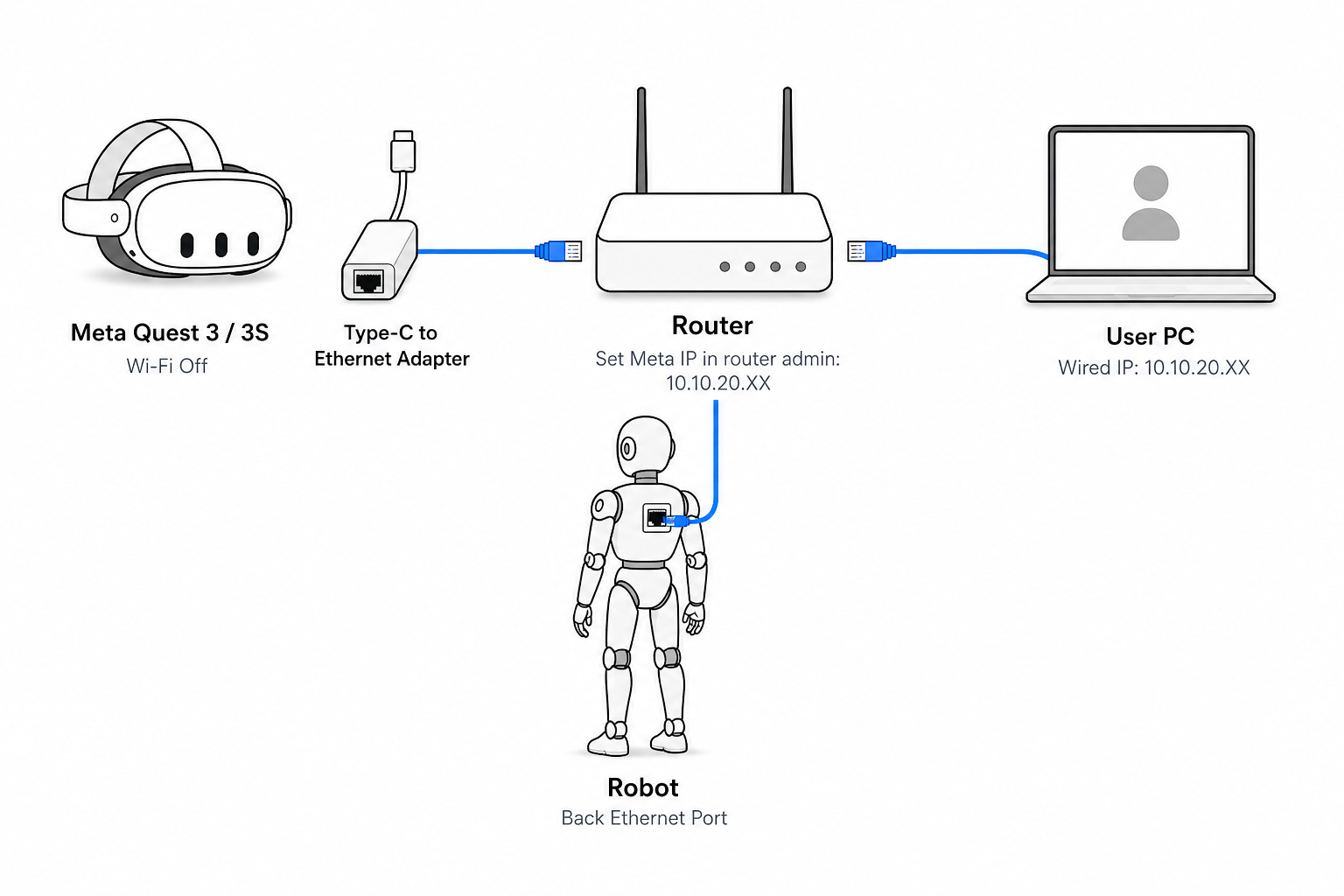
- Use a Type-C to Ethernet adapter to connect to the user router
- Turn off Wi-Fi
-
User router: Used as an independent LAN (separate from the robot's factory router)
- Ethernet cable to VR headset
- Set the VR headset IP to the
10.10.20.XXsubnet in router management - Ethernet cable to user PC
- Ethernet cable to the NUC port on the back of the robot
-
User PC
- Ethernet cable to user router
- Manually set wired network IP to the
10.10.20.XXsubnet
-
Robot
- Boot process completed
- Teleoperation program installed
- Connected to the internet via Wi-Fi (factory router)
- Connected to user router via Ethernet
Device Connection Topology
The router shown is the user router
Operation Flow
Run the Teleoperation Program
On the user PC terminal, run:
ssh pnd-humanoid@10.10.20.127  # Default password: pndxyz

source /opt/pnd/pnd_teleop/setup_cli.bash

pteleop setup ssh  # Press Enter when prompted; default password: pndxyz

spteleop teleop adam_u webvr mink
Visualize Video Stream (PC)
- On the user PC, open a browser and visit:
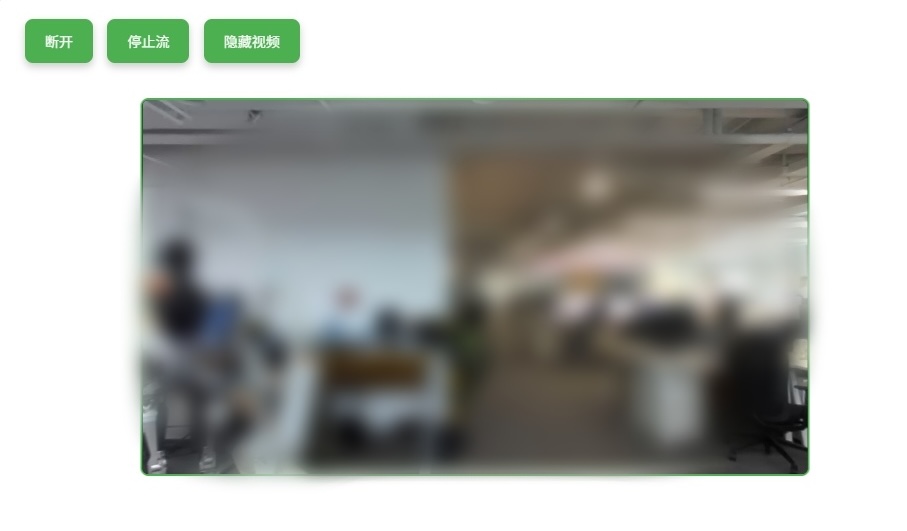
- Click: Connect → Start Stream → Show Video
Sync Headset Display (VR)
- In the Meta headset browser, visit:
- Click: Start Controller Tracking → Allow
- After the passthrough view appears: Press Y on the left Meta controller to toggle the video stream on/off