Sim2Real
This section explains how to deploy a trained policy to the physical robot to achieve motion control.
Robot Connection
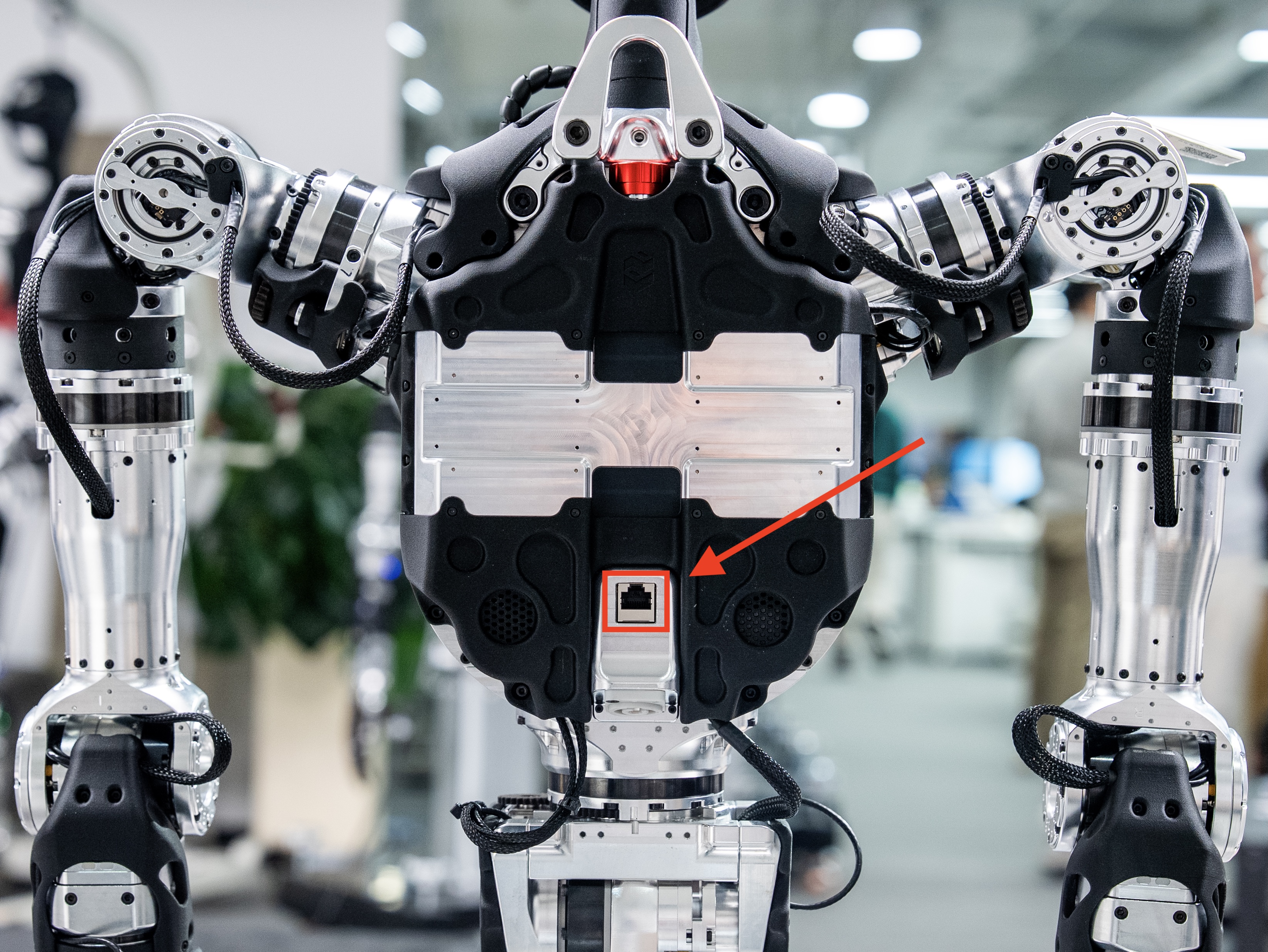
- Use an Ethernet cable to connect the robot and the user computer. The robot network port is located on the back
- Configure the user computer to be on the same subnet as the robot, and modify the IP address, for example:
10.10.20.XXX

Developer Mode
Note
- Make sure Demo startup has been completed
- For more operations and mode descriptions, refer to the Remote Controller Guide
Ensure the robot is suspended and in Damping Mode. Short press the controller key combination LO + RO (press both joysticks vertically) to enter Developer Mode.
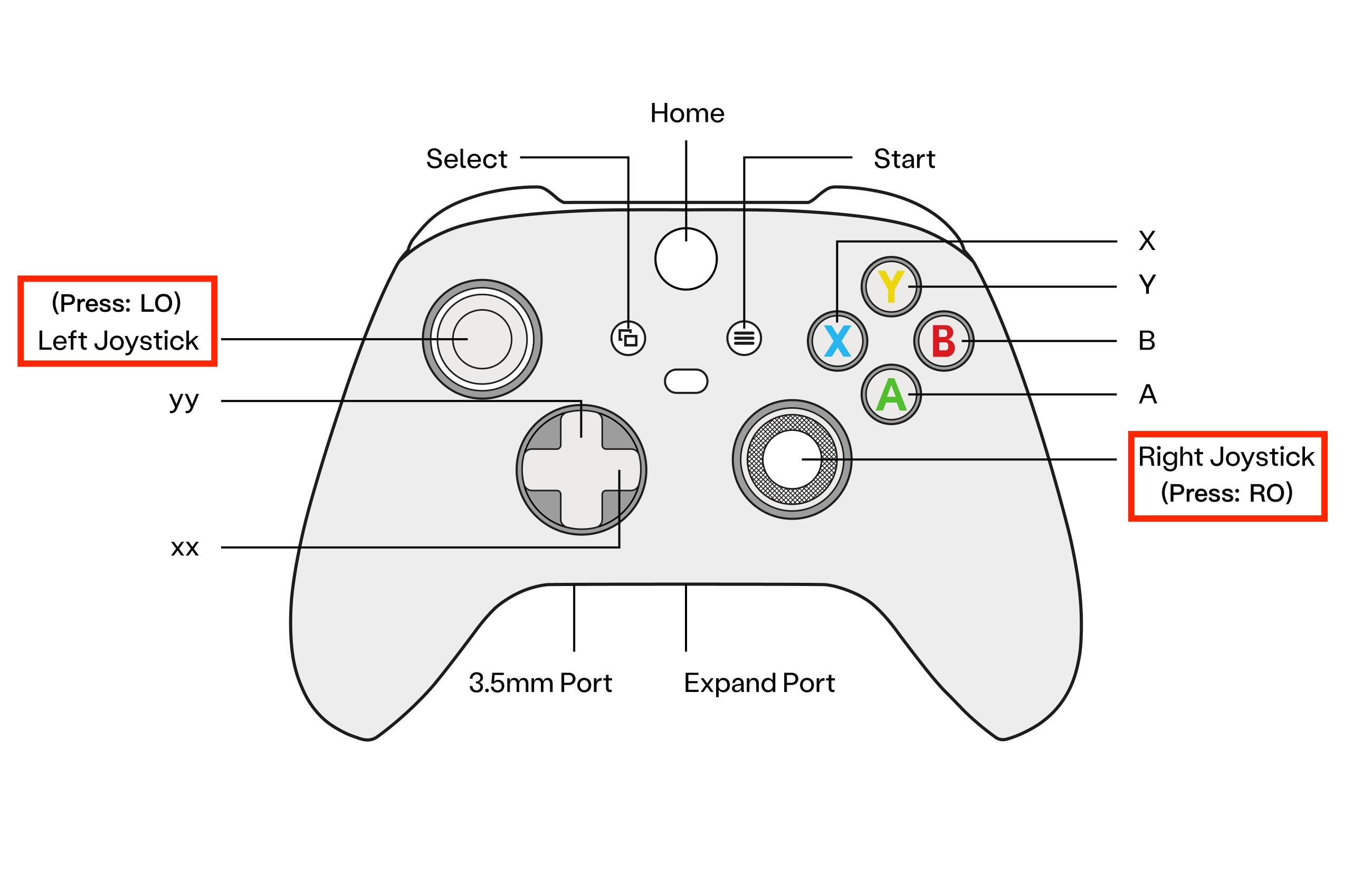
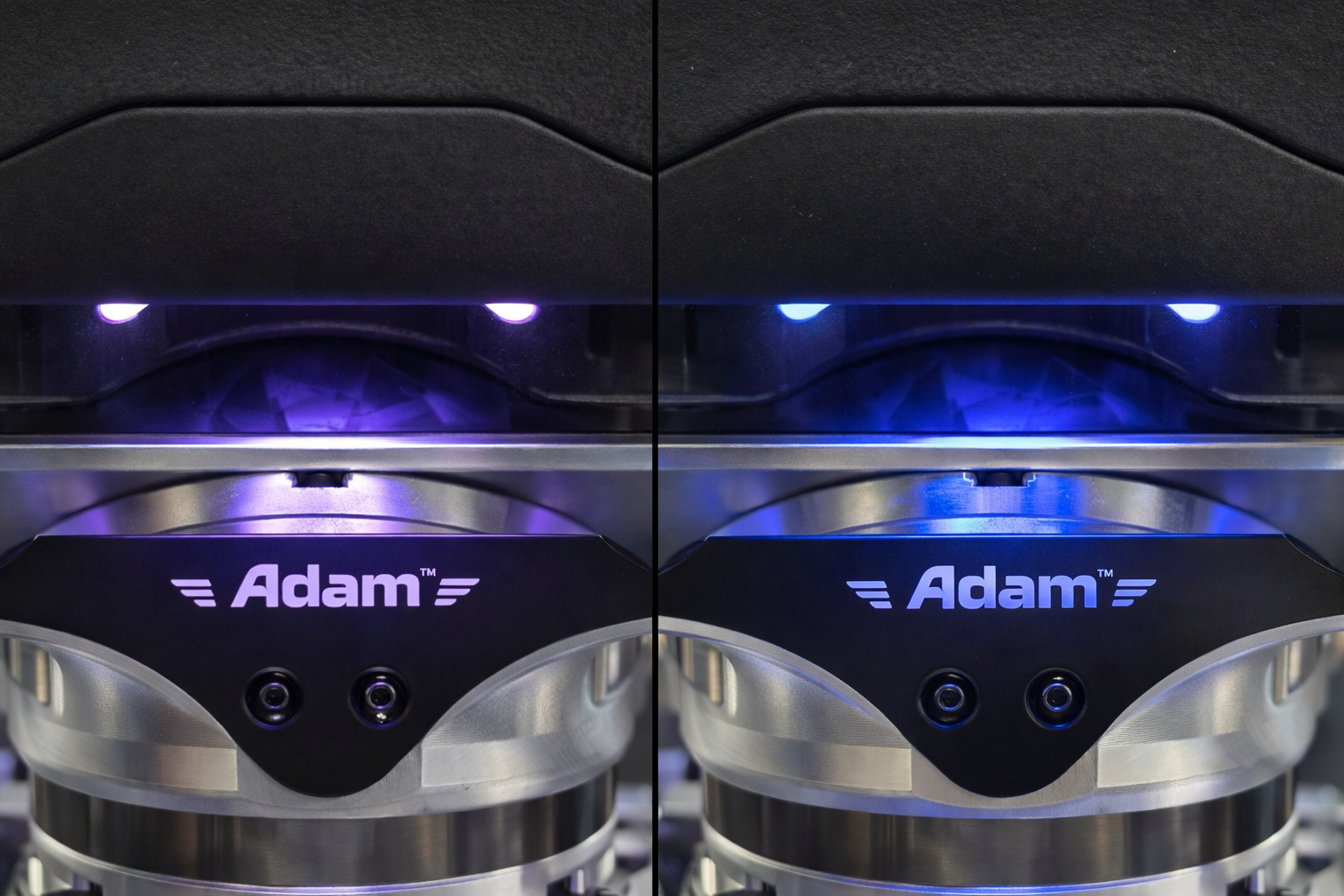
When the RCU indicator light changes from slow purple breathing to slow blue breathing, it indicates that Developer Mode has been entered successfully. At this point, the SDK can be used for development and debugging.
Run Control Example
1. Start the Program
# Get network interface name
ip a

# Run control example (replace enp59s0 with your actual wired network interface)
python deploy/deploy_real/deploy_real.py enp59s0 adam_lite_12dof.yaml
2. Preset Pose
After starting the program, the robot enters Damping Mode. Press the start button on the controller, and the robot joints will move to the default position, assuming the preset pose.
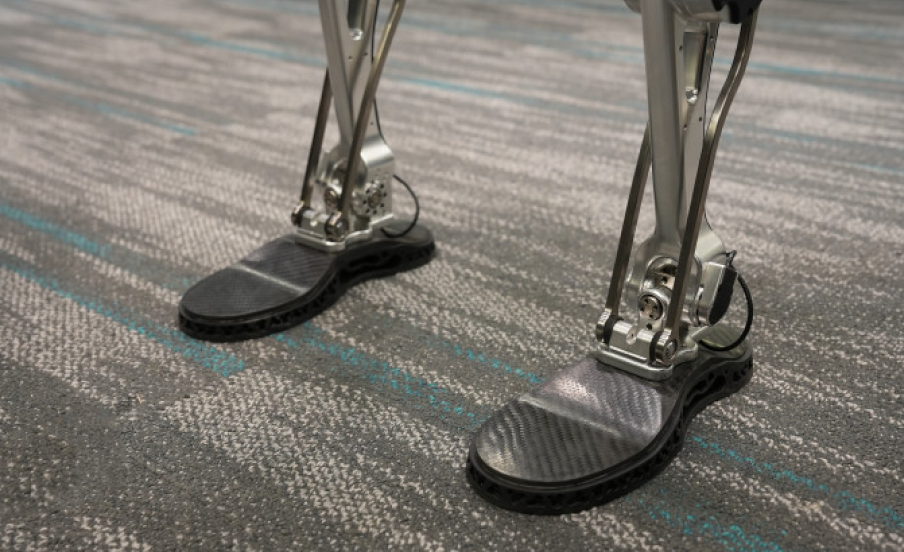
Lower the suspension rope so that both feet of the robot fully touch the ground.
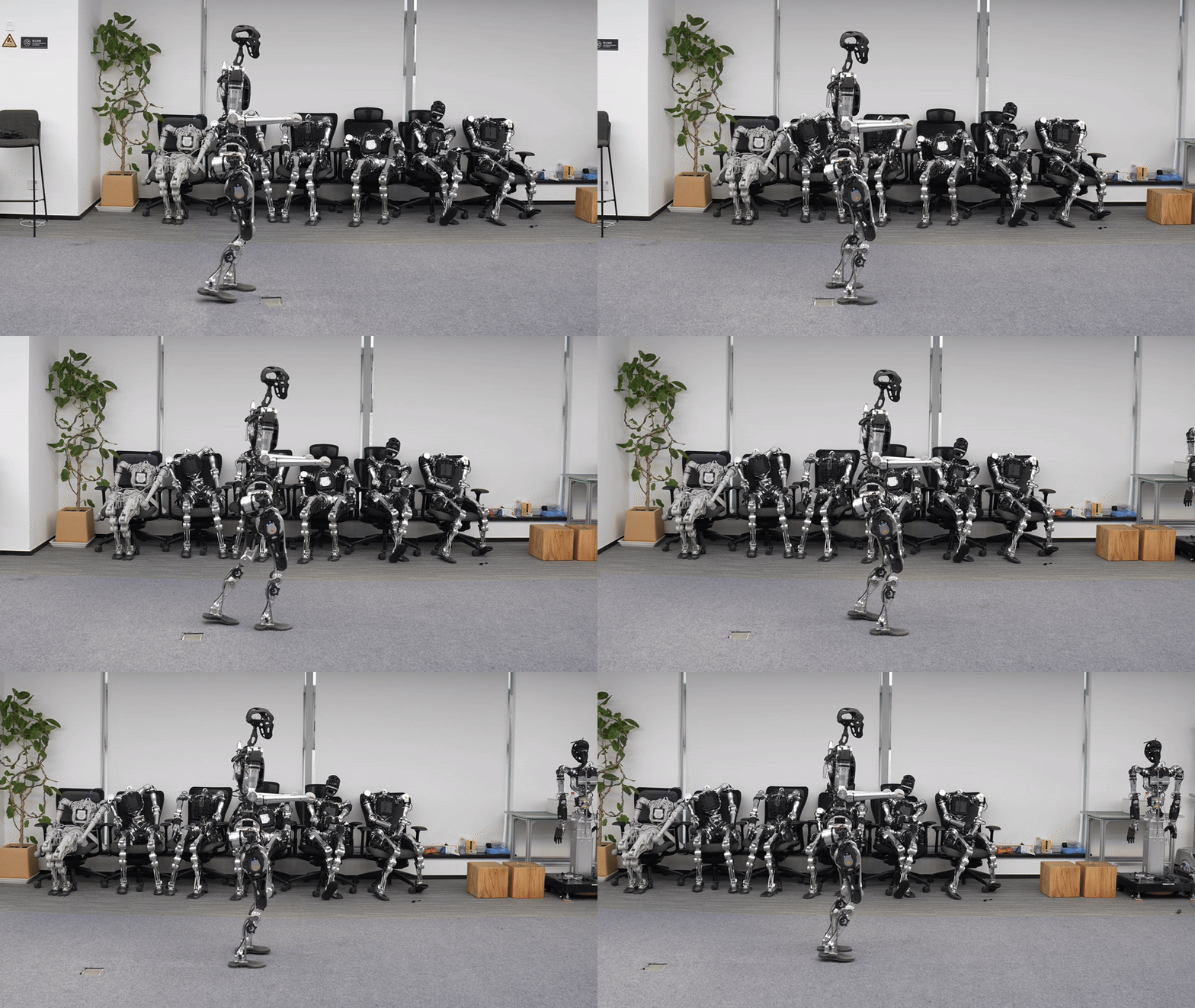
3. Motion Control
Press the A button on the controller. The robot will begin stepping in place. After the state stabilizes, gradually lower the suspension rope to give the robot some freedom of movement.
You can now use the controller joysticks to control the robot:
- Forward/backward on the left joystick controls the robot’s velocity in the x direction.
- Left/right on the left joystick controls the robot’s velocity in the y direction.
- Left/right on the right joystick controls the robot’s yaw angular velocity.
4. Exit the Program
Press the B button on the controller or execute Ctrl+C in the user terminal to exit the program.
Exit Developer Mode
Short press the controller key combination LT + B to exit Developer Mode. The RCU indicator light will change from slow blue breathing to slow purple breathing, indicating that Developer Mode has been exited successfully and the robot has returned to Damping Mode.